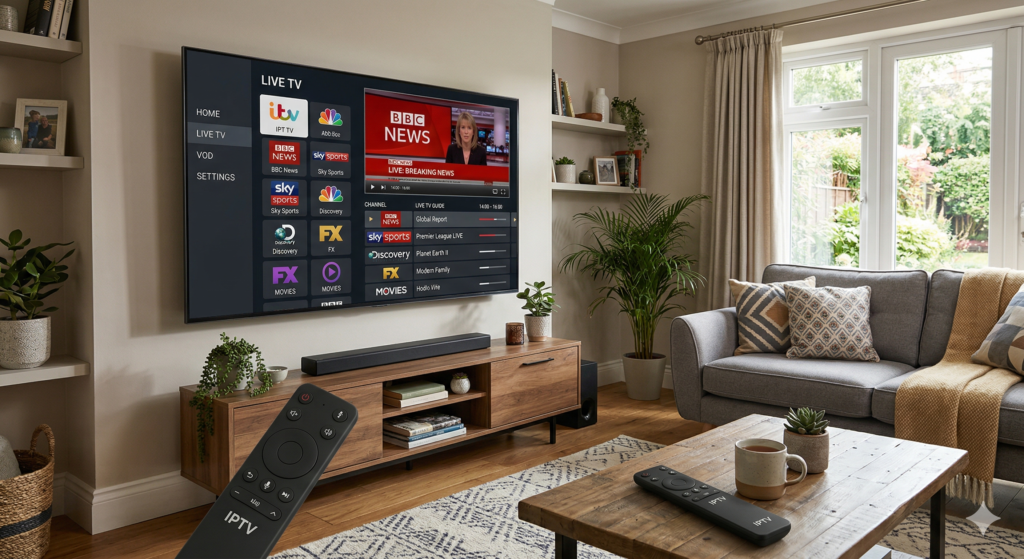
What is IPTV? IPTV stands for Internet Protocol Television, which means TV content is delivered over the internet instead of through traditional cable, satellite, or antenna systems. For beginners, the simplest explanation is that IPTV lets you watch live channels and on-demand video through apps and connected devices, including many smart TVs.
That basic definition matters because many people hear the term but do not know how it works in real life. They may assume it is just another streaming app, or they may think it always requires extra hardware. In practice, IPTV can be simple to understand once you know the basics.
At TVNADO, the goal is to make that learning curve easier. If you are new to the space, this guide will explain what is IPTV, how it works, how it compares with other viewing options, and what beginners should know before using it on a smart TV.
Table of Contents
- What is IPTV in simple terms
- What is IPTV and how it works on smart TVs
- IPTV vs cable vs streaming apps
- What you need to get started
- How to set up IPTV on a smart TV
- Common mistakes beginners make
- Best practices for a better experience
- FAQs
- Final thoughts
What Is IPTV in Simple Terms?
If you are asking what is IPTV, the shortest answer is this: it is television delivered through internet protocol networks.
Instead of receiving channels through a cable line or satellite dish, your device receives digital video data through the internet. An IPTV app or player then turns that data into live TV, catch-up content, or on-demand video on your screen.
What IPTV usually includes
IPTV often covers more than one content type:
- live TV channels
- video on demand
- catch-up TV
- channel categories
- program guide data
That is one reason what is IPTV has become such a common beginner search. It is not just one app or one service type. It is a delivery method that can support several TV viewing experiences.
What Is IPTV and How It Works on Smart TVs
To understand what is IPTV and how it works on smart TVs, it helps to think about the viewing process step by step.
A content source makes channels or video libraries available online. That content is then encoded into digital streaming formats. When you open an IPTV app on your smart TV and select a channel, the app requests the stream, loads it through your internet connection, and plays it on the screen.
From the user side, it feels simple. You open the app, browse channels, choose content, and watch. Behind the scenes, the app is handling data requests, playback, buffering, and guide loading.
Why smart TVs work well with IPTV
Smart TVs are a natural fit because they already include:
- internet connectivity
- app installation support
- media playback tools
- remote-based navigation
That means many users can try IPTV without buying separate hardware. In some cases, a compatible app is enough.
What is IPTV used for on a smart TV?
For most users, what is IPTV becomes easier to understand once they see what it is used for in practice. On a smart TV, IPTV is commonly used for:
- watching live news and sports
- opening entertainment channel lists
- browsing on-demand content
- using guide-based TV navigation
- combining modern streaming with a TV-style interface
This is where IPTV feels different from many catalog-first streaming platforms.
IPTV vs Cable vs Streaming Apps
A direct comparison helps answer what is IPTV more clearly.
| Feature | IPTV | Cable or Satellite | Streaming Apps |
|---|---|---|---|
| Delivery method | Internet-based | Broadcast signal | Internet-based |
| Live channels | Usually yes | Yes | Sometimes |
| On-demand content | Often included | Limited or separate | Main feature |
| Program guide | Common | Standard | Varies |
| Smart TV support | Yes, through apps | Often needs provider box | Yes |
| Viewing style | TV-like interface | Traditional TV | Library-first interface |
The biggest difference is that IPTV often combines the structure of traditional TV with the flexibility of internet delivery.
So if you still wonder what is IPTV, one practical answer is this: it sits between classic television and modern app-based streaming.
What You Need to Get Started
Before using IPTV, it helps to know the basics.
1. A compatible smart TV
Many Samsung, LG, Android TV, Google TV, and Fire TV systems support IPTV-compatible apps.
2. A stable internet connection
Because IPTV is internet-based, network quality affects video playback. Poor Wi-Fi can lead to lag, buffering, or low quality.
3. A compatible IPTV app or player
The player is the software that loads channels, playlists, account details, or guide information.
4. Access details
Depending on the setup, this may include:
- a playlist URL
- login credentials
- a portal address
- guide or EPG data
At TVNADO, a common beginner issue is not understanding the difference between the app and the content source. The app is often just the tool used to watch the content.
Users with compatible televisions or streaming setups can also explore TVNADO for Android TV for device-specific guidance.
How to Set Up IPTV on a Smart TV
If you understand what is IPTV, the next step is learning how to set it up.
Step 1: Identify your TV platform
Check whether your television uses Samsung’s system, LG webOS, Android TV, Google TV, or another platform.
Step 2: Install an IPTV-compatible app
Download a player from the app store that supports playlist links, portal setups, or login-based access.
Step 3: Enter your details
Add the access information required by the app.
Step 4: Connect through a reliable network
Ethernet is often better than Wi-Fi for stable live TV streaming, although good Wi-Fi can still work well.
Step 5: Load channels and test playback
Open several channels and confirm that video, audio, and navigation all work smoothly.
Step 6: Organize your interface
Set favorites, remove clutter, and simplify the layout so daily use feels easier.
Step 7: Keep firmware and apps updated
This helps improve compatibility and reduce playback issues.
For beginners, this setup flow usually makes what is IPTV feel much less technical.
Common Mistakes Beginners Make
Even after understanding what is IPTV, new users often make the same avoidable mistakes.
Choosing the wrong app
Some apps are not designed for IPTV navigation, guide support, or smart TV usability.
Ignoring internet quality
A fast internet plan does not always mean a stable in-room connection.
Expecting every smart TV to perform the same
Different TV brands and operating systems offer different app support and hardware performance.
Confusing IPTV with all streaming services
IPTV is internet-based, but it often works more like television than pure on-demand apps.
Leaving the interface messy
A cluttered channel list can make the experience harder than it should be.
Skipping updates
Old firmware and outdated apps can cause crashes, missing features, or playback issues.
Best Practices for a Better IPTV Experience
Once you know what is IPTV, the next step is using it well.
Use Ethernet when possible
A wired connection is often more stable than Wi-Fi for real-time streaming.
Choose a clean, simple app
The better the interface, the easier it is to browse channels, guides, and favorites.
Keep your TV updated
Firmware updates can improve app performance and compatibility.
Test playback at different times
If issues happen only at busy hours, network congestion may be part of the problem.
Learn the basics before troubleshooting
Understanding what is IPTV makes it easier to diagnose whether an issue comes from the app, network, or device.
Add helpful supporting resources
This pillar article should naturally link to related pages such as best IPTV apps for smart TVs, how to set up IPTV on Samsung TV, and IPTV buffering fixes.
Link to trusted outside references
You can also support readers with dofollow links to official resources like Samsung Smart TV support, LG Support, and Google TV Help.
Is IPTV Good for Beginners?
Yes, IPTV can be beginner-friendly when the setup is clear and the app is easy to use.
For many people, what is IPTV becomes much easier to understand after one practical setup. The experience often feels familiar because it still includes channels, guides, and TV-style browsing, even though the delivery happens online.
That said, beginners should keep expectations realistic. IPTV is only as smooth as the app, device, and connection behind it.
If your smart TV is limited or older, this guide on how to install TVNADO on Firestick can be a useful alternative
Final Thoughts
So, what is IPTV in practical terms? It is a way of watching television through the internet, often using apps that bring together live channels, on-demand content, and guide-based viewing. For smart TV users, that makes IPTV flexible, modern, and easy to explore once the basics are clear.
For a beginner, the best approach is simple: understand the setup, choose a compatible app, use a stable connection, and avoid overcomplicating the process. That is the kind of practical foundation TVNADO aims to provide.
9. FAQs
What is IPTV?
IPTV is television delivered over the internet. Instead of using cable or satellite signals, it streams channels and video content through internet-based apps and devices.
What is IPTV and how it works on smart TVs?
It works through compatible apps on a smart TV. The app connects to internet-based streams and plays live channels, on-demand video, and sometimes guide data through your home connection.
Is IPTV the same as Netflix?
No. IPTV often focuses on live channels and TV-style navigation, while Netflix is mainly built around on-demand content libraries.
Can I use IPTV directly on a smart TV?
Yes. Many smart TVs support IPTV apps directly, although app availability depends on the TV platform and operating system.
Why does IPTV buffer?
Buffering usually happens because of weak Wi-Fi, internet congestion, old apps, outdated TV firmware, or limited hardware performance.
Is IPTV hard to set up for beginners?
Usually not. Once you know what is IPTV and what details the app requires, setup is often straightforward.